Archiving
Working with large MBOX files: open, split and back up
What to do when an archive is several gigabytes: why it fails to load, how to split it safely and how to store it for years.
Read articleThree common email file formats side by side, with notes on conversion and which one suits backups, sharing and Outlook.
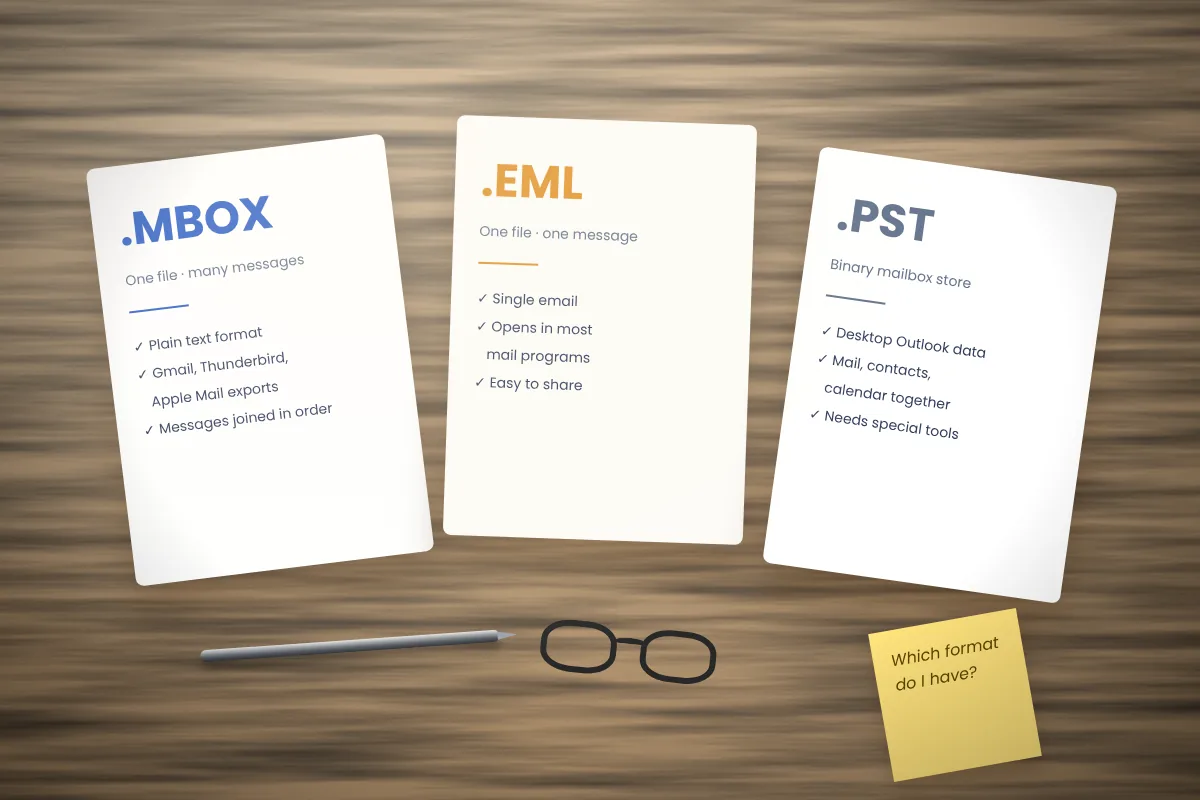
Email can be saved in several file formats, and the one you have decides which tools will open it. MBOX, EML and PST are the three you are most likely to meet. They solve different problems, so it helps to know how they compare.
| MBOX | EML | PST | |
|---|---|---|---|
| What it holds | Many messages in one file | One message per file | A whole mailbox: mail, contacts, calendar |
| File type | Plain text | Plain text | Binary database |
| Typical source | Gmail Takeout, Thunderbird, Apple Mail | Saving a single email, many mail apps | Classic Outlook for Windows |
| Folder structure | One file per folder | None (you organise the files) | Full folder tree inside one file |
| Readable without the original app | Yes, with a viewer | Yes, most mail apps | Needs Outlook or special tools |
MBOX joins messages end to end in a single text file. It is ideal for exports and long-term archives because it is simple, widely supported and readable decades later. Its downside is that large files are slow to scan and a single damaged section can disturb the rest.
EML is one email in one file, using the same internet message format that MBOX uses inside. You can attach an .eml file to a ticket, send it to a colleague or open it by double-clicking in most mail programs. In fact, each message in an MBOX file is essentially an EML file with a separator line in front of it.
That is why MBox Viewer can export one, several or all messages as separate .eml files. You get self-contained files without converting the whole archive.
PST is the personal storage format of classic Outlook for Windows. It is a structured binary file that holds mail, contacts, calendar items, tasks and notes together. Microsoft has published the specification, but in practice you still need Outlook or a dedicated library to read it.
Outlook does not import MBOX directly. That is the main reason people look for MBOX to PST conversion.
Before converting: ask whether you need to. If the goal is to read, search or keep a few messages, opening the MBOX file in a viewer avoids conversion entirely and leaves the original untouched.
Whatever you choose, keep the original export as well. Conversions can lose details such as header data, read status or unusual character sets.
What to do when an archive is several gigabytes: why it fails to load, how to split it safely and how to store it for years.
Read articleA plain explanation of the MBOX format: how messages are stored, where the files come from and what you need to read them.
Read articleWindows cannot open MBOX files on its own. Here are the steps that work, plus the common problems and how to fix them.
Read article