Thunderbird
How to find and view Thunderbird MBOX files directly
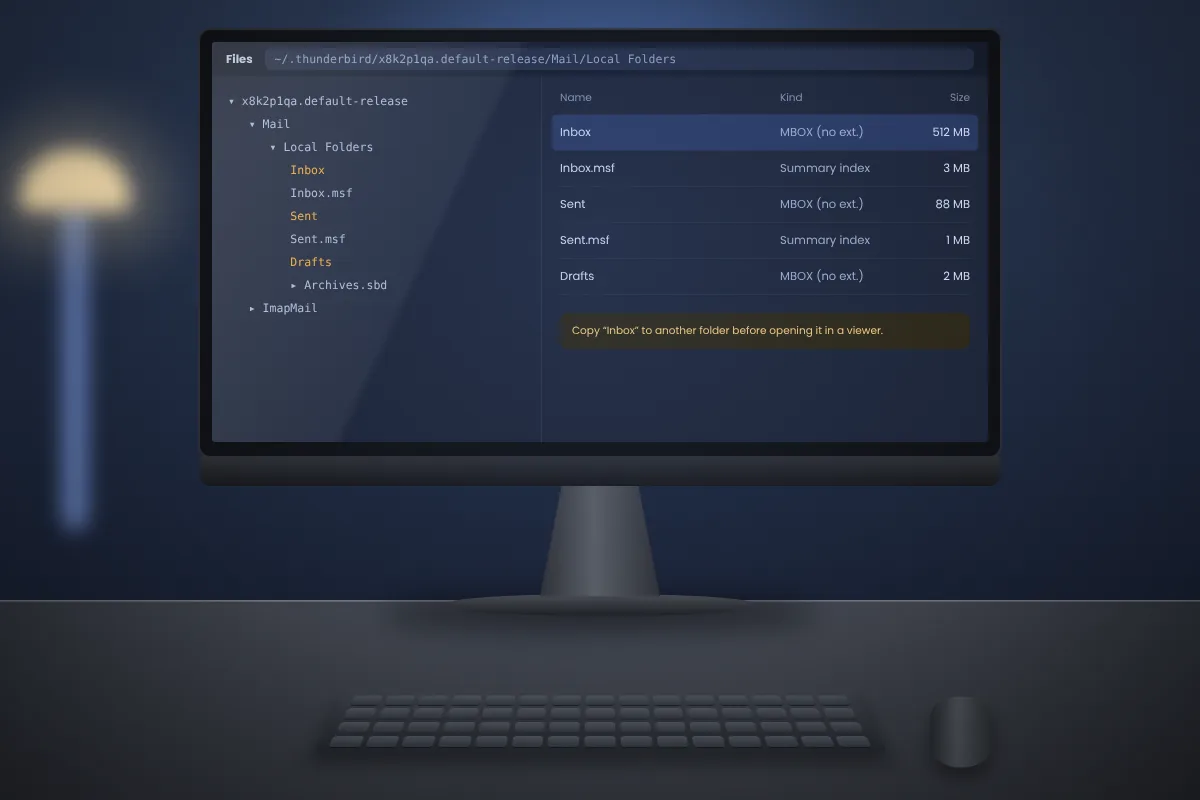
Where Thunderbird keeps your mail on Windows, macOS and Linux, which files matter and how to read them without starting Thunderbird.
Read articleFrom requesting the export to reading the messages: how Gmail data arrives from Takeout and how to open the MBOX file inside.
Google Takeout is the official way to download a copy of your Gmail. It packs your mail into an MBOX file, which you can keep as a backup, move to another provider or read offline. Here is the full process, from the request to the first message on screen.
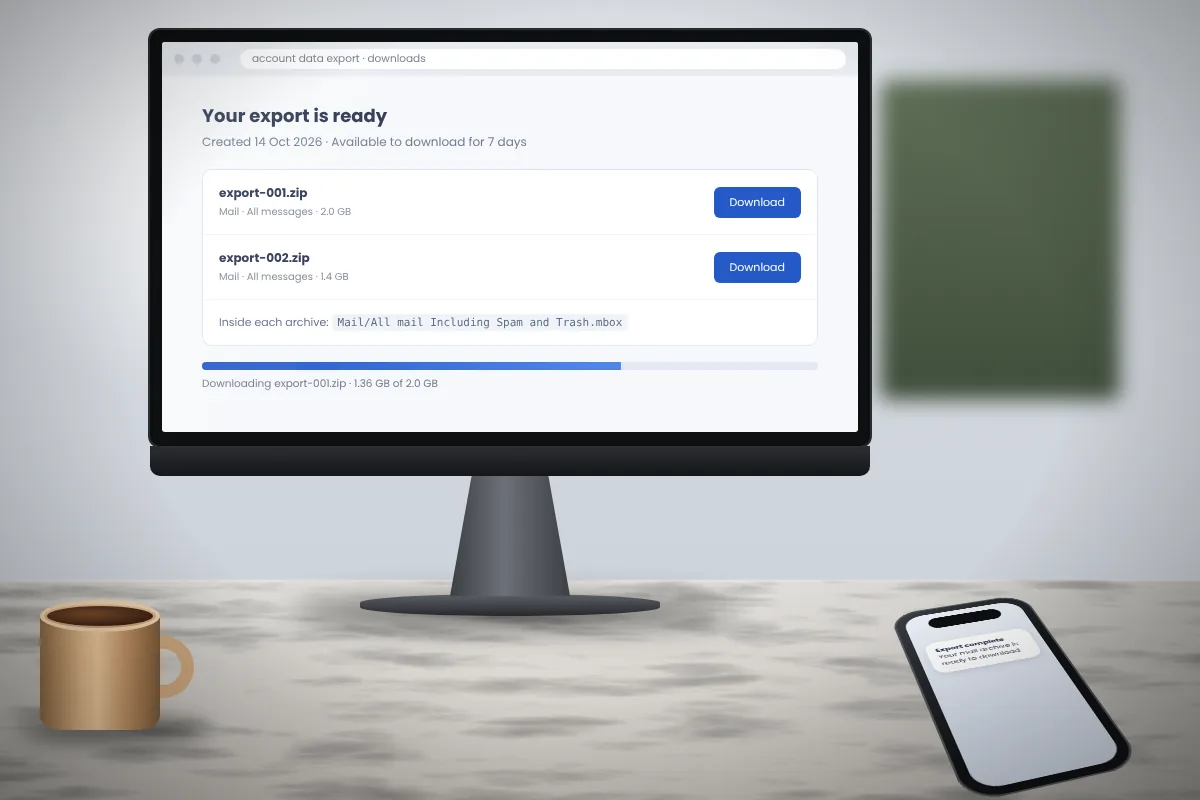
Google then prepares the archive. Small mailboxes can be ready within minutes. Large ones can take hours or even a couple of days. You will receive an email when it is ready.
The download link is only valid for a limited time, so do not leave it for long. Large exports are split into several ZIP files according to the size you selected.
Extract each ZIP. Inside you will find a folder structure like this:
Takeout / Mail / All mail Including Spam and Trash.mbox
If your export came in several parts, look in each one for the Mail folder. Other services you selected will have their own folders next to it.
Windows users: extract to a short path such as C:\Takeout. The long folder and file names can exceed the Windows path limit when extracted deep inside Downloads.
Click a column header to sort by date, sender or subject, or use search to find a person, subject or phrase. On a Mac, import the file into Apple Mail or Thunderbird instead, as described in our Mac article.
Gmail labels are not folders, so Takeout does not create one file per label. Every message appears once in the single MBOX file, and its labels are listed in a header called X-Gmail-Labels.
MBox Viewer reads these labels, so you can browse the export by label much as you did in Gmail. You can also open the raw header fields of any message and look for the X-Gmail-Labels line, where labels such as Inbox, Sent, Important or your own names are separated by commas.
As the file name says, the default export includes messages in Spam and Trash. If you see unexpected junk, that is the reason. To leave them out, choose specific labels in step 3 of the export request.
Attachments are stored as Base64 text in MBOX, which adds around a third to their size. A mailbox that uses 6 GB in Gmail can produce an MBOX file of 8 GB or more. Check that you have enough disk space before extracting.
Where Thunderbird keeps your mail on Windows, macOS and Linux, which files matter and how to read them without starting Thunderbird.
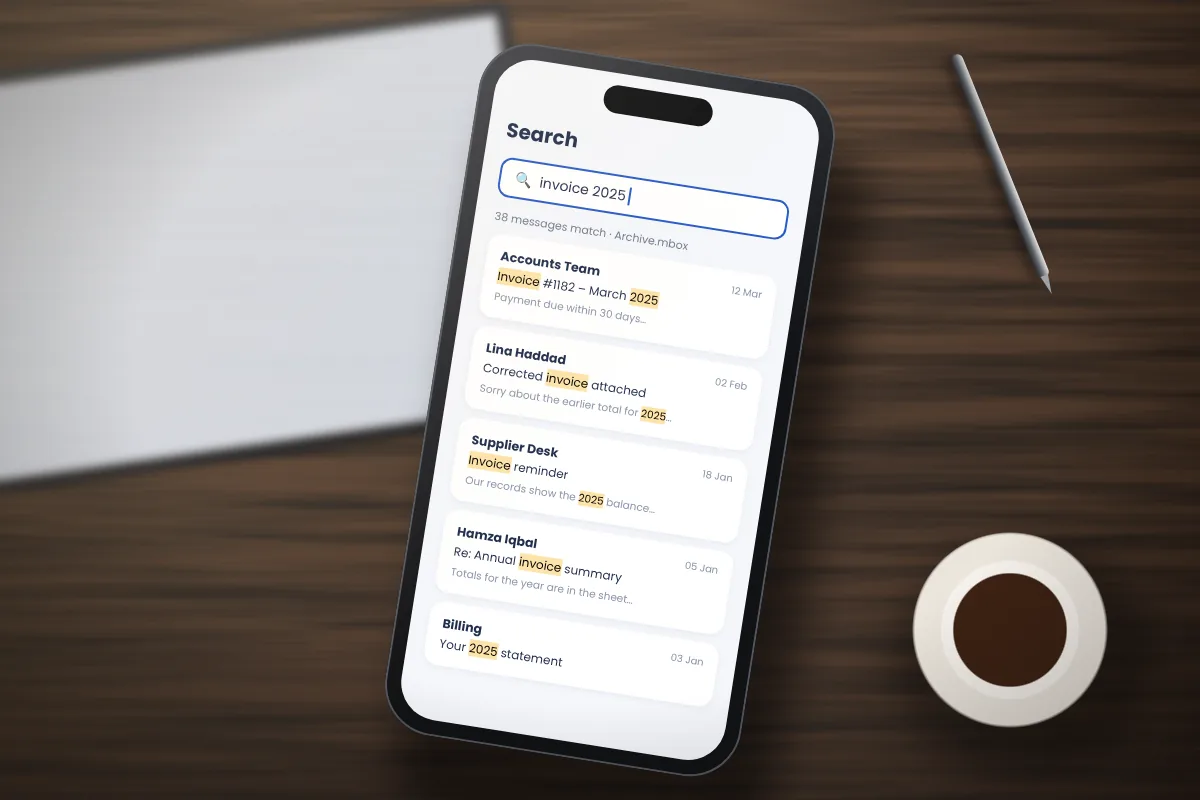
Read articlePractical ways to find one email among thousands: what to type, how to narrow results and what search cannot see.
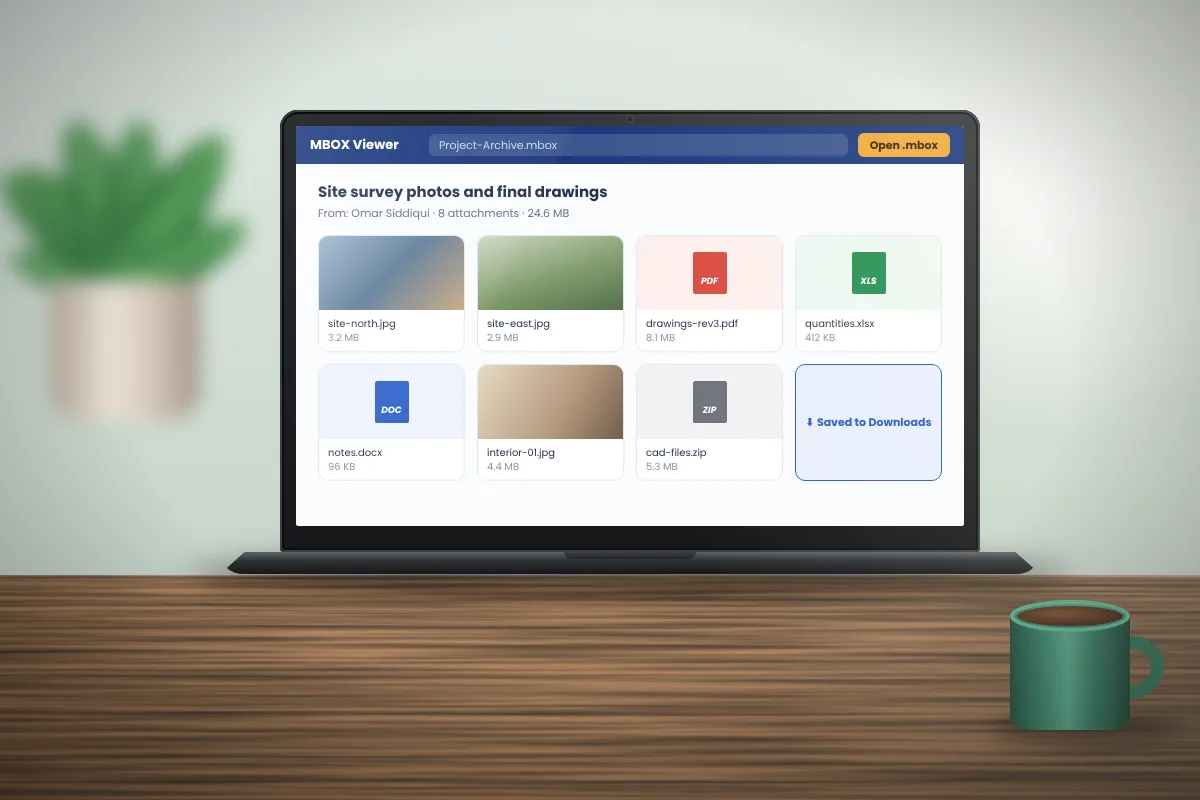
Read articleHow attachments are stored inside MBOX, how to save them one at a time or in bulk, and which files to treat with care.
Read article