Gmail
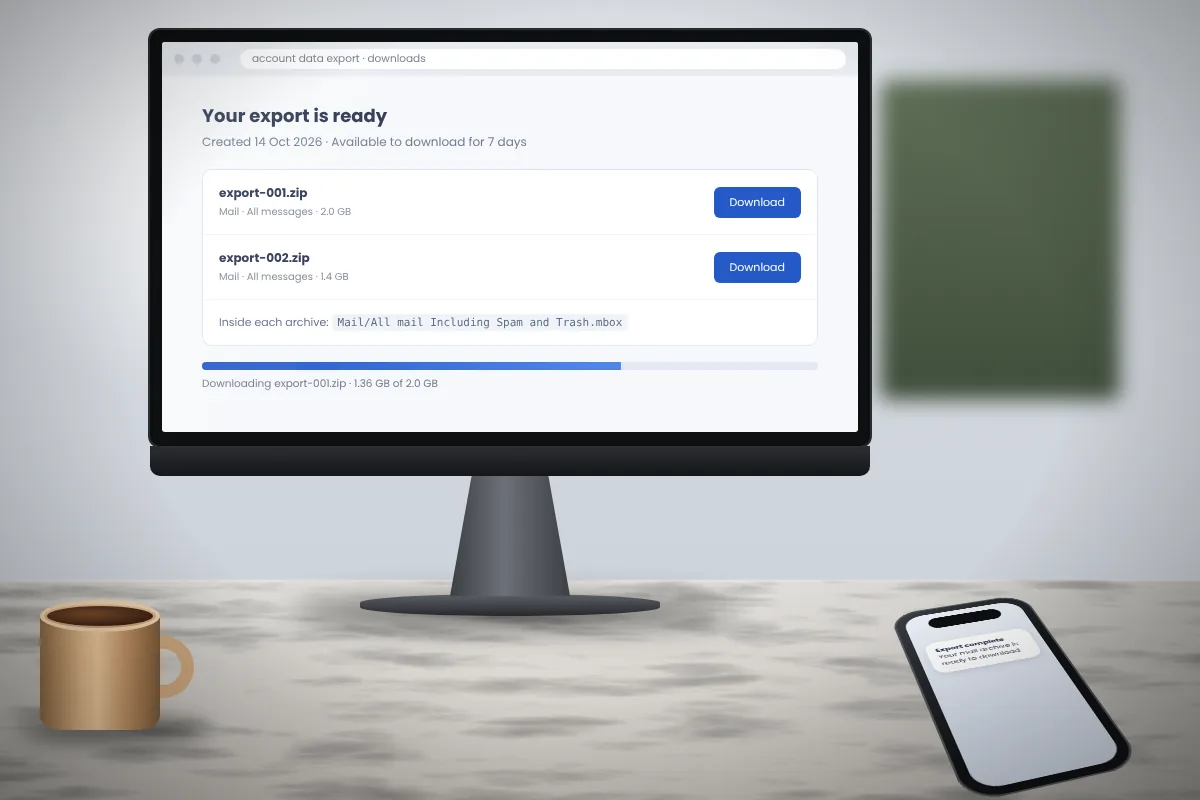
How to open a Gmail Takeout MBOX export step by step
From requesting the export to reading the messages: how Gmail data arrives from Takeout and how to open the MBOX file inside.
Read articleApple Mail can import MBOX, but you do not have to. This is how to read the files directly on macOS, including .mbox packages.
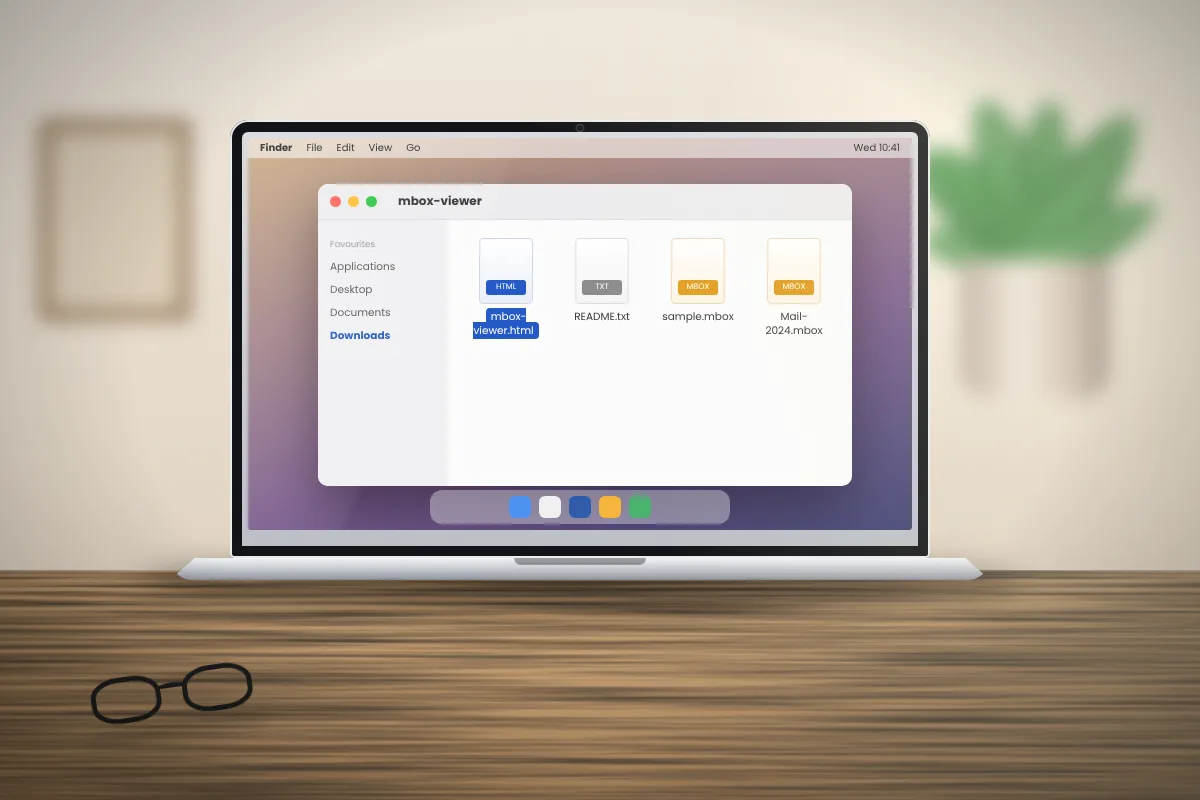
On a Mac, the obvious route is to import an MBOX file into Apple Mail. That works, but it adds hundreds or thousands of old emails to your mail database, where they mix with current mail and get indexed by Spotlight. If you only need to read or search the archive, keeping it in a separate program is cleaner.
When Apple Mail exports a mailbox, the result looks like a single file named, for example, Clients.mbox. It is actually a folder that macOS displays as one item.
To see inside, Control-click it and choose Show Package Contents. You will usually find:
Files from Google Takeout, Thunderbird or a server are ordinary single files and need no unpacking.
Thunderbird for Mac is free and keeps the archive in its own program, away from your Apple Mail mailboxes.
mbox file. Press Command-Shift-G in the dialog to type a path.Tip: if the file dialog will not enter the package, copy the inner mbox file to your Desktop first and import that copy. MBox Viewer, offered in our download section, is a Windows program; if you also have a Windows PC, copying the file there is another quick route.
For long-term use, importing can make sense:
The messages appear under a new Import mailbox in the sidebar, stored on your Mac rather than in any online account. You can move them or delete the whole folder later.
Recent versions of macOS protect folders such as Desktop, Documents and Downloads. If Mail or Thunderbird asks for permission to access a folder when you pick a file, allow it. The access is used only to read the file you selected.
Importing copies every message, so you need free disk space at least as large as the archive. Multi-gigabyte imports can take a long time. If one stalls, split the file into smaller parts using the method in our article on large MBOX files and import the parts one by one.
mbox file for Apple Mail exports.From requesting the export to reading the messages: how Gmail data arrives from Takeout and how to open the MBOX file inside.
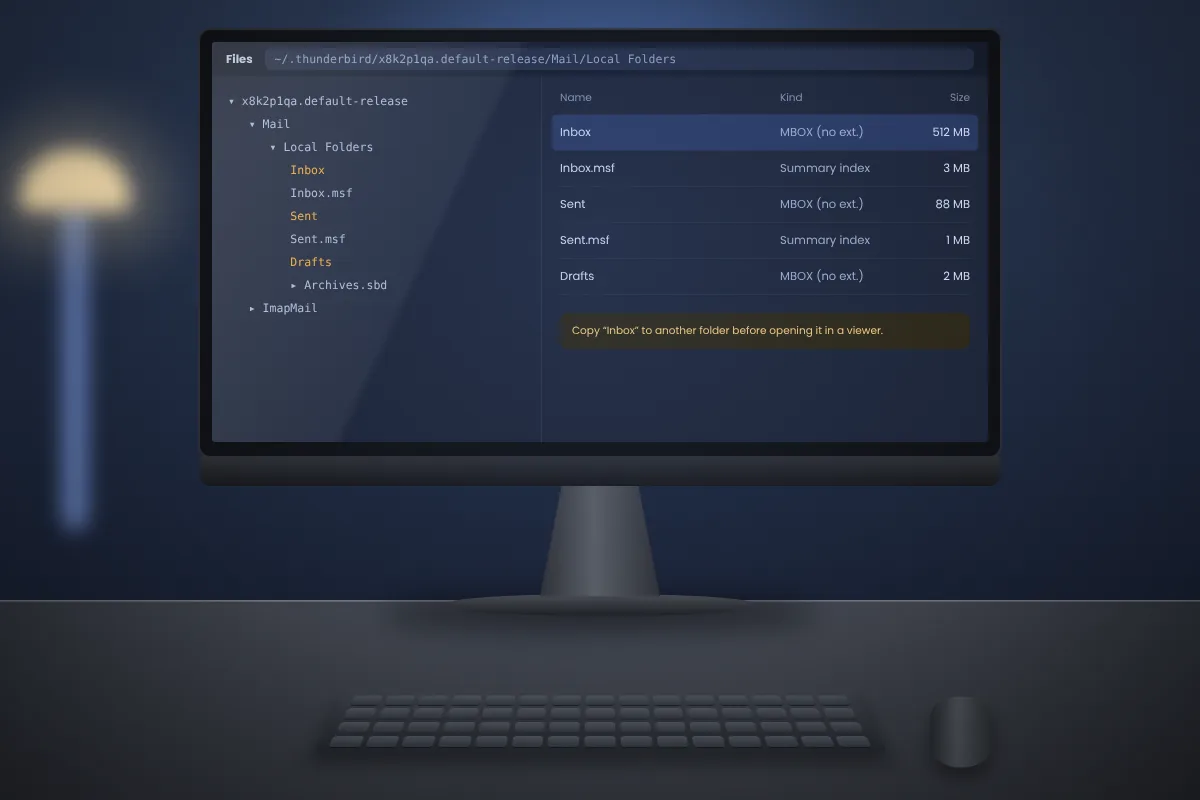
Read articleWhere Thunderbird keeps your mail on Windows, macOS and Linux, which files matter and how to read them without starting Thunderbird.
Read articlePractical ways to find one email among thousands: what to type, how to narrow results and what search cannot see.
Read article