Formats
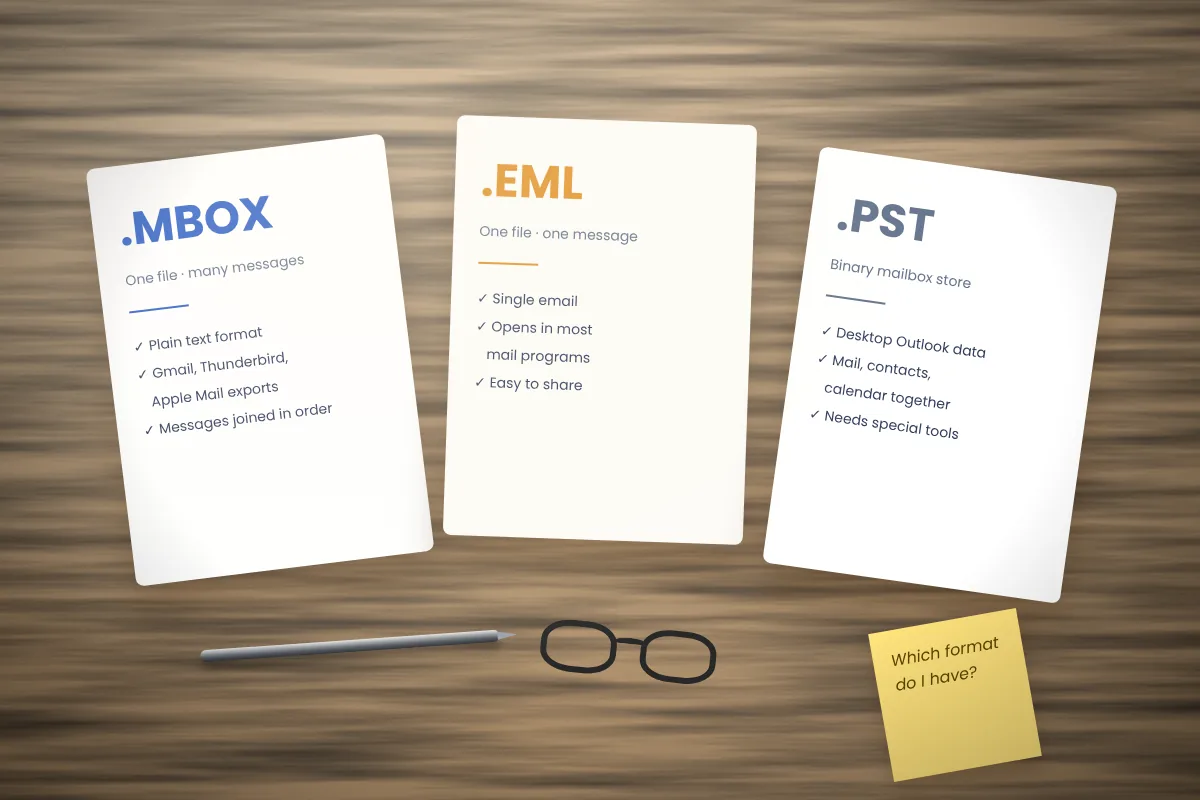
MBOX vs EML vs PST: email file formats compared
Three common email file formats side by side, with notes on conversion and which one suits backups, sharing and Outlook.
Read articleHow attachments are stored inside MBOX, how to save them one at a time or in bulk, and which files to treat with care.
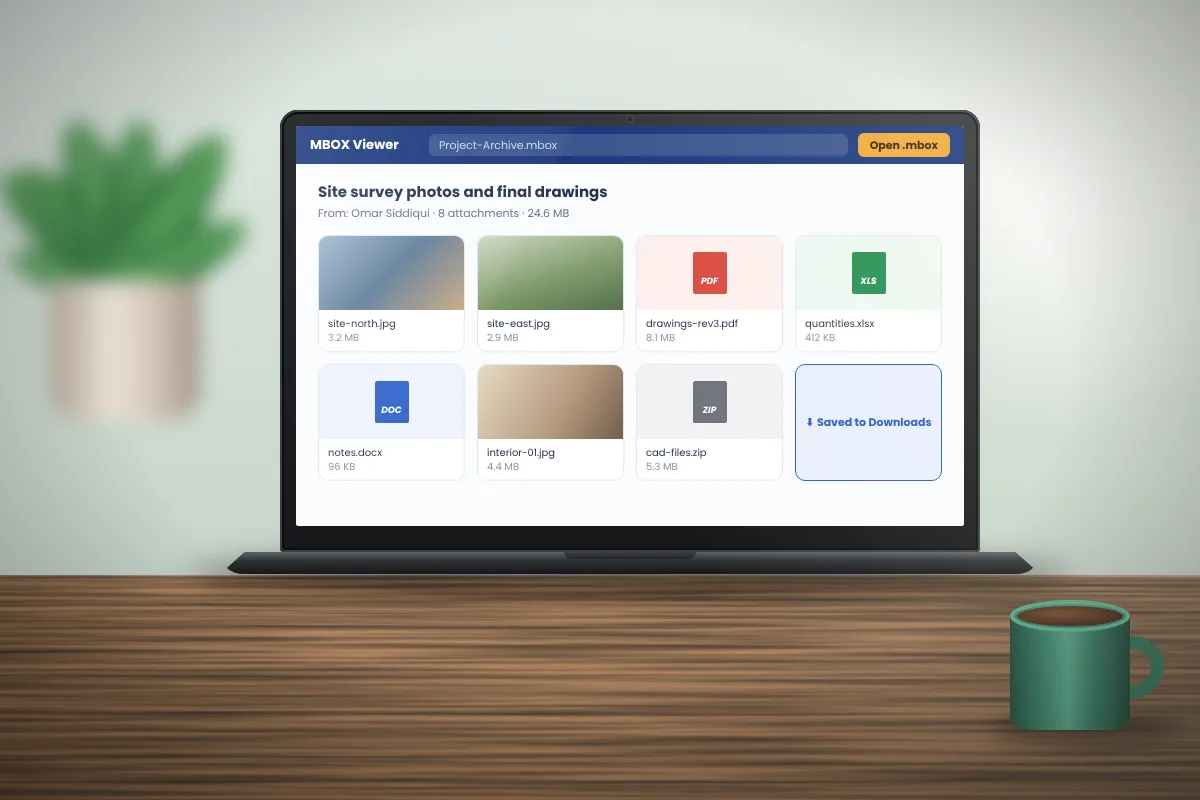
Often the reason for opening an old archive is a file: a signed contract, a set of photos, a spreadsheet someone sent years ago. MBOX files keep attachments inside the messages, so you need a tool that can decode them back into normal files.
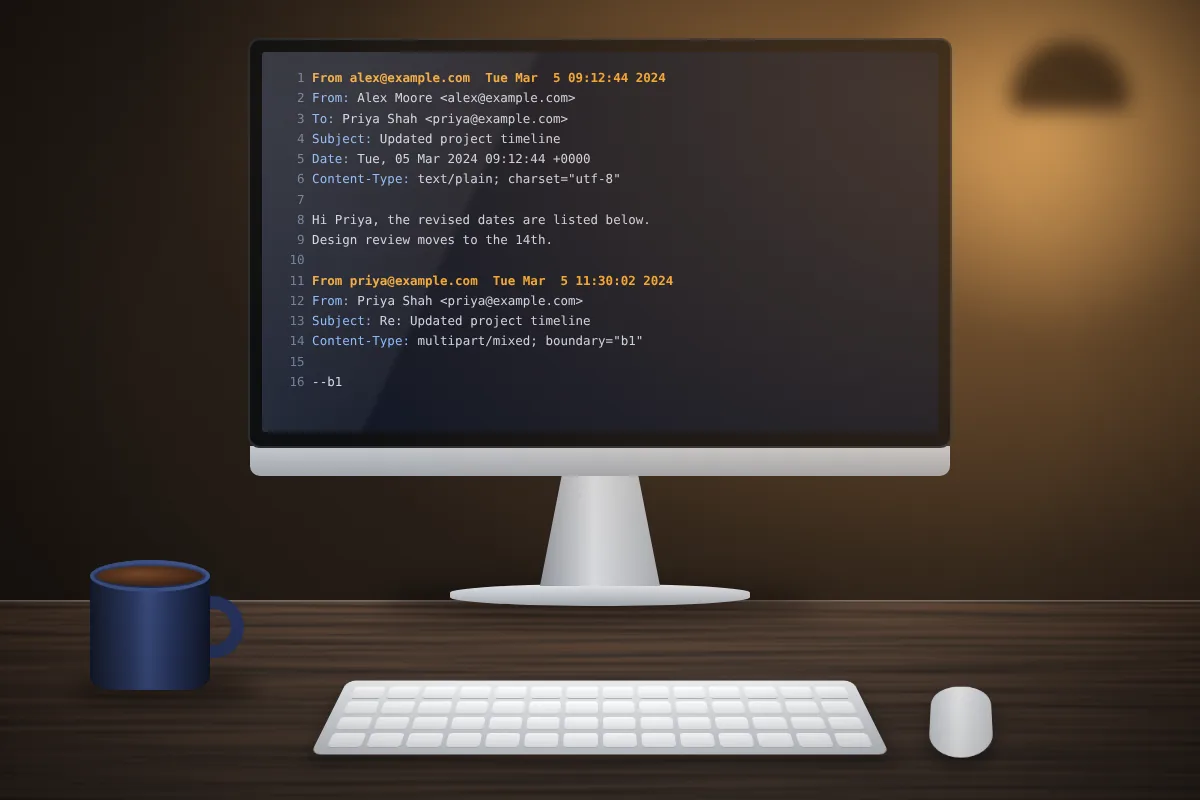
Every attachment is part of the email's MIME structure. The file is converted to Base64 text and placed between boundary lines, with headers that give its name and type, for example:
Content-Disposition: attachment; filename="contract.pdf"
Images embedded in the body of HTML emails, such as logos and signatures, are stored the same way but marked as inline. They are usually referenced by a Content-ID so the email can display them in place.
Outlook's packed winmail.dat attachments can be opened with a double-click to show the files inside.
Tip: if you save many files with similar names, create a separate folder for each case or person before you start.
MBox Viewer can export the attachments of all mails in an archive in one pass, which is the simplest option on Windows. Two other free routes also work well:
mailbox module can walk through every message and write each attachment to disk. It is a good choice for archives of tens of thousands of messages.A minimal script looks like this:
import mailbox, os
for i, msg in enumerate(mailbox.mbox("archive.mbox")):
  for part in msg.walk():
    name = part.get_filename()
    if name:
      open(f"out/{i}-{os.path.basename(name)}", "wb").write(part.get_payload(decode=True) or b"")
Create the out folder first. The message number at the start of each name prevents files with the same name from overwriting each other.
Old archives can contain old threats. Spam and phishing messages from years ago may still carry harmful attachments.
Saving a file does not run it. The risk only starts when you open it, so you can safely save first and check afterwards.
Three common email file formats side by side, with notes on conversion and which one suits backups, sharing and Outlook.
Read articleWhat to do when an archive is several gigabytes: why it fails to load, how to split it safely and how to store it for years.
Read articleA plain explanation of the MBOX format: how messages are stored, where the files come from and what you need to read them.
Read article