Attachments
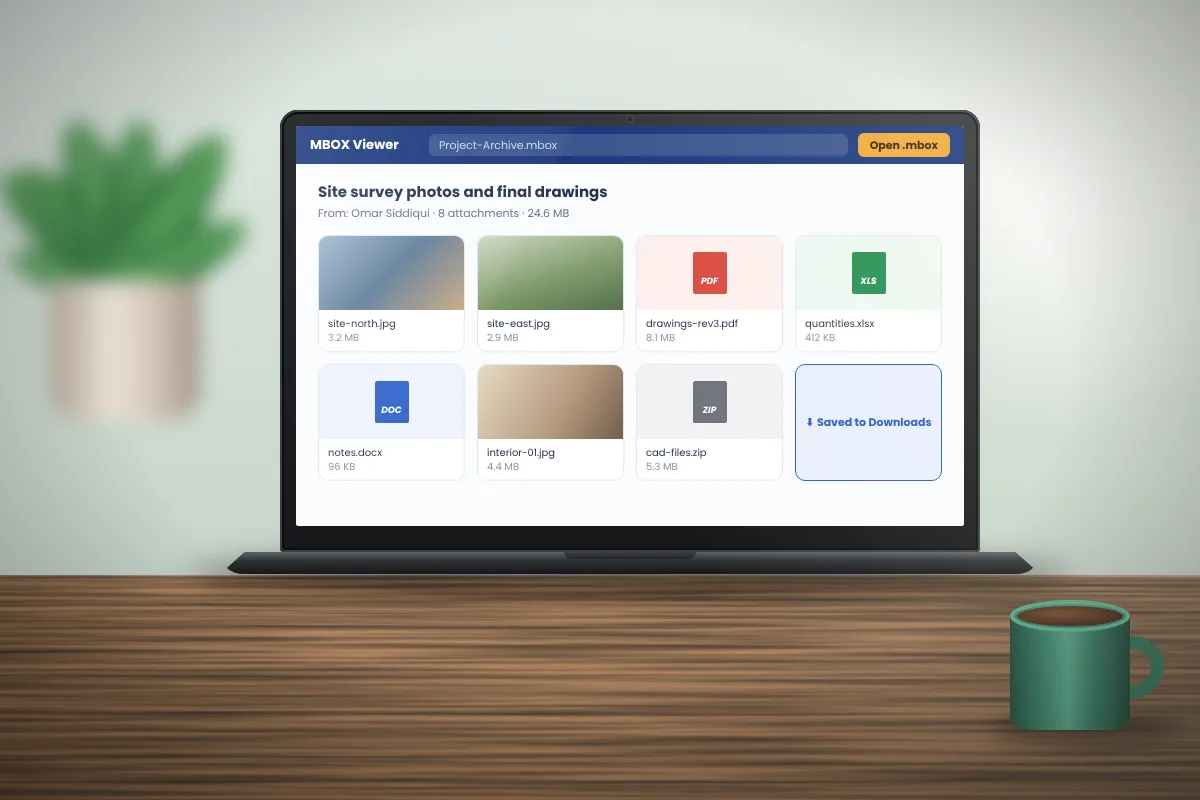
How to save attachments from MBOX emails safely
How attachments are stored inside MBOX, how to save them one at a time or in bulk, and which files to treat with care.
Read articlePractical ways to find one email among thousands: what to type, how to narrow results and what search cannot see.

An archive with tens of thousands of messages is only useful if you can find the one you need. Here is how to search an MBOX file efficiently, both in a viewer and from the command line.
The search in MBox Viewer can look at several parts of every message, alone or combined:
Limiting a search to a date range first is the quickest way to cut a large archive down. Inside an open message, Find highlights every occurrence of a word, which helps in long threads.
@supplier.com, lists everything from one organisation.Some content is not visible to any text search:
For very large files, or to check a file before opening it, a terminal is fast. These commands work on macOS and Linux, and in Git Bash or WSL on Windows.
Count the messages in a file:
grep -c "^From " archive.mbox
List the subjects that contain a word:
grep -i "^Subject:.*invoice" archive.mbox
Find which messages mention a reference number, with the line number:
grep -n "PO-20418" archive.mbox
On Windows without extra tools, PowerShell can do a similar search:
Select-String -Path .\archive.mbox -Pattern "PO-20418"
Note: command-line searches see the raw file. Encoded subjects and Base64 bodies will not match plain words. A viewer decodes those first, so it finds messages that grep misses.
How attachments are stored inside MBOX, how to save them one at a time or in bulk, and which files to treat with care.
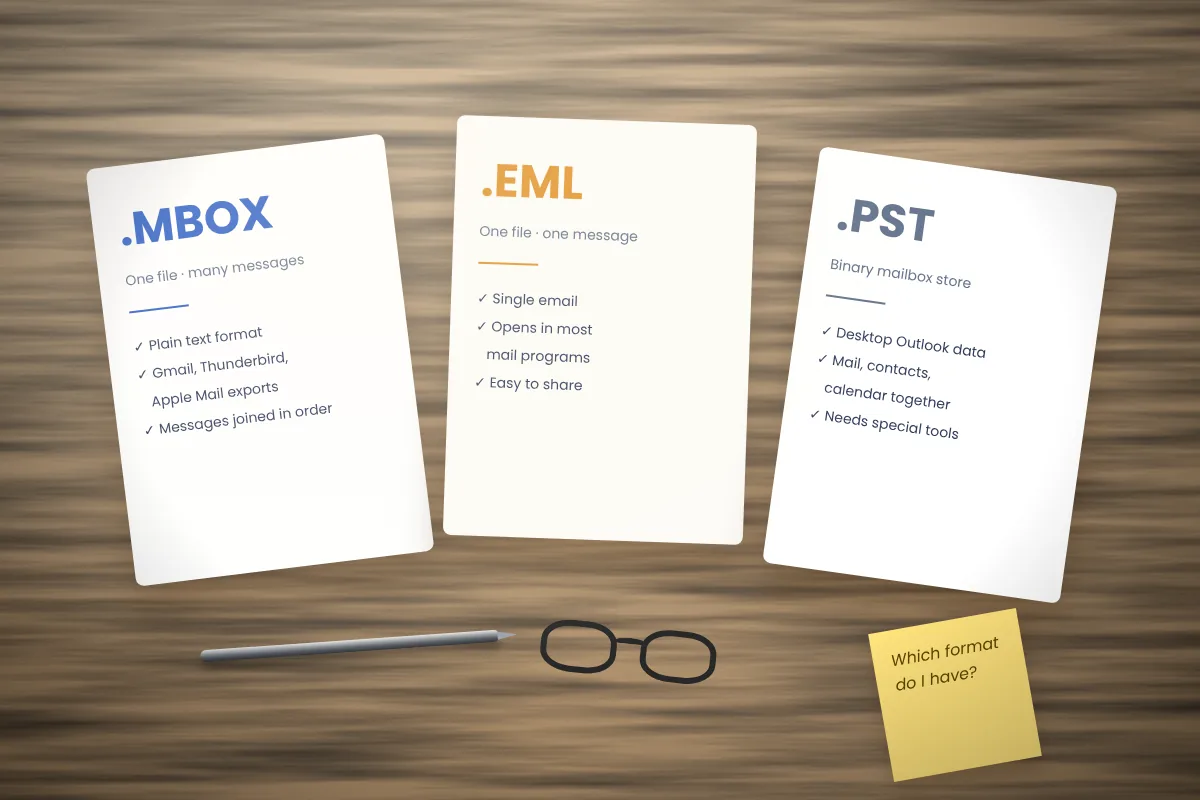
Read articleThree common email file formats side by side, with notes on conversion and which one suits backups, sharing and Outlook.
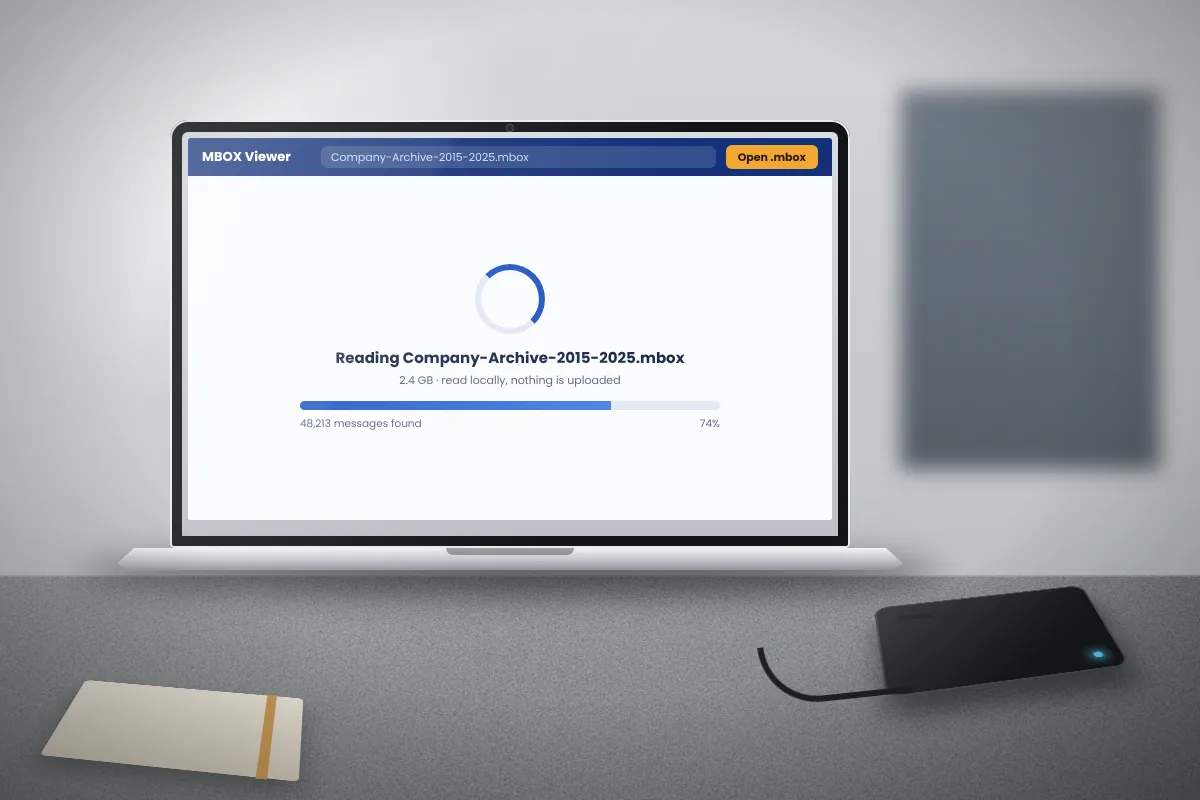
Read articleWhat to do when an archive is several gigabytes: why it fails to load, how to split it safely and how to store it for years.
Read article